


Dear Valued Customers,
Your account security matters to us. To help keep your Magicbox account safe, we’re introducing Two-Factor Authentication, an additional security step that protects your account even if your password is compromised.
With 2FA enabled, you’ll be asked to verify your identity using a one-time code sent to your email each time you log in.
Why Two-Factor Authentication?
Two-Factor Authentication adds an extra layer of protection by requiring something you know (your password) and something you have (a one-time code sent to your email).
Benefits at a glance:
- Stronger protection against unauthorized access
- Secure email-based verification
- Quick and easy to use
- Full control – enable or disable anytime
Availability & Configuration
Before enabling 2FA, here’s what you need to know:
- 2FA is controlled at the tenant (organization) level.
- Your organization must opt in to activate this feature.
- Activation is done with the help of the Magicbox Support Team.
- Once enabled at the tenant level, it becomes available in the New Magicbox UI/UX only.
- Administrators can:
- Enable 2FA for all user roles, or
- Enable it for specific roles (Teacher, Publisher and Admins).
- After it is enabled for your role, you can manage 2FA directly from your profile settings.
- If you do not see the 2FA option in your profile, please contact your administrator.
How to enable Two-Factor Authentication
You can enable 2FA from your profile in just a few steps.
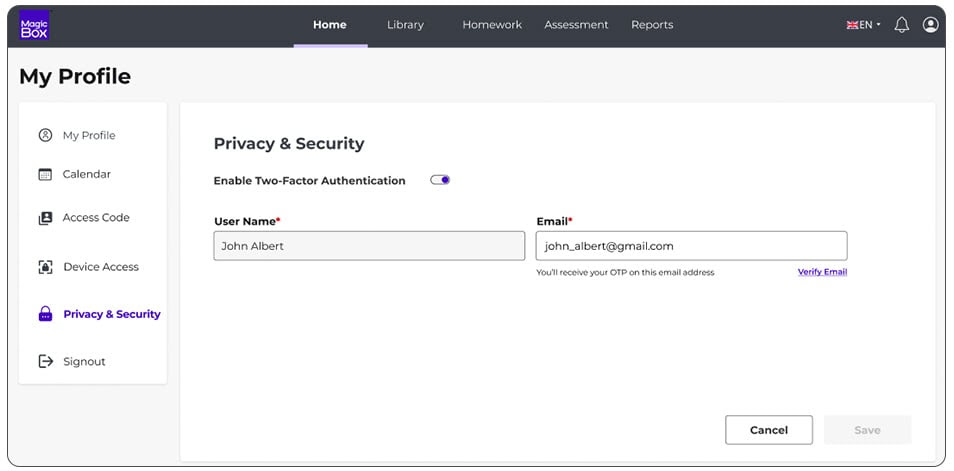
Go to Privacy & Security
- Open your Profile
- Select Privacy & Security
- Turn ON Enable Two-Factor Authentication
This option is available only if your account is enabled for 2FA.
Verify your email address
After turning on 2FA:
- Your username will be shown (non-editable)
- Your email address will appear (you can change it if needed)
- Click Verify Email
We’ll send a 6-digit One-Time Password (OTP) to the email you provide.
You’ll receive all future login verification codes via email.
Enter the OTP and save
- Enter the 6-digit OTP from your email
- Click Confirm OTP
- Once verified, click Save Changes
That’s it. Two-Factor Authentication is now enabled for your account.
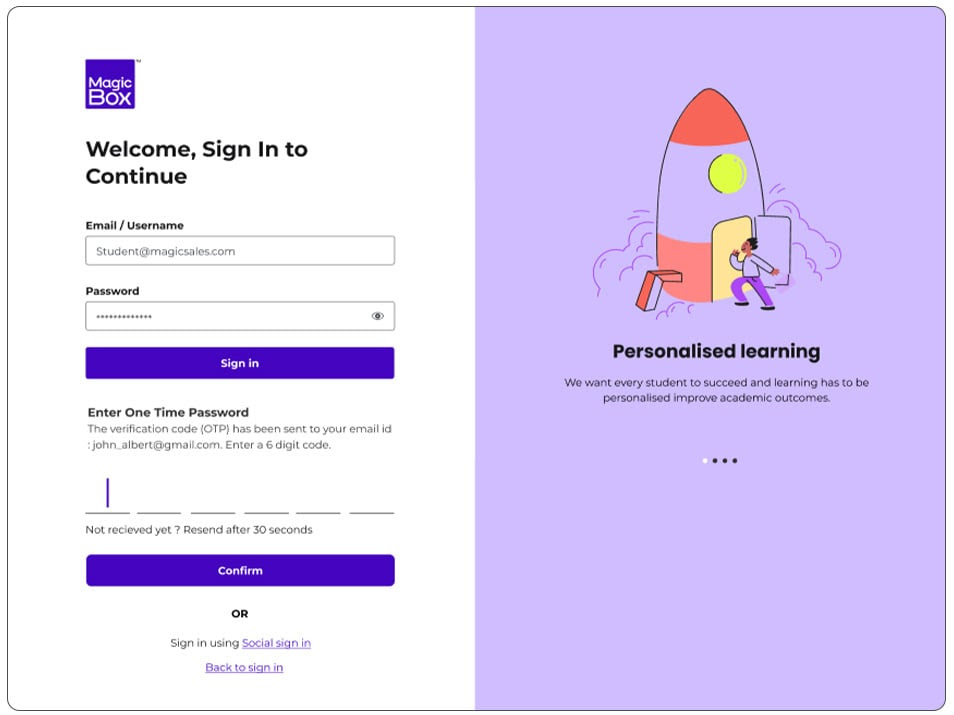
What changes when you log in?
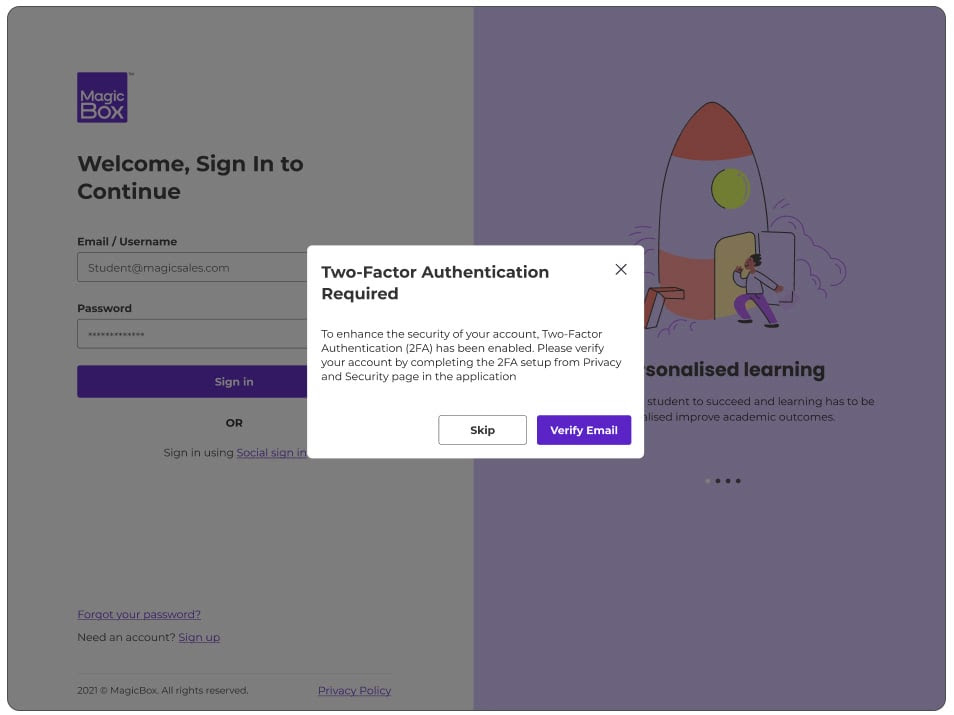
Once 2FA is enabled, your login experience will include an extra step:
- Enter your username and password
- You’ll see a message:
“A One-Time Password (OTP) has been sent to your verified email address.” - Enter the OTP to access your account
This ensures only you can log in even if someone else knows your password.
Didn’t receive your OTP?
If you don’t see the email:
- Check your spam or junk folder
- Click Resend OTP to receive a new code
- If the issue continues, please contact your administrator
In rare cases, if email delivery fails, you’ll see a message letting you know to try again later.
Can I disable Two-Factor Authentication?
Yes, absolutely.:
- You can turn off 2FA at any time from Privacy & Security
- Click Resend OTP to receive a new code
- If you’ve already verified your email, we’ll remember it for future use
What will the OTP email look like?
You’ll receive an email with:
- A clear subject line about OTP verification
- Your 6-digit OTP
- Validity time (10 minutes)
- Instructions in case you didn’t request the action
These emails are sent by the Magicbox Security Team.
Stay secure!
We strongly recommend enabling Two-Factor Authentication to keep your account protected.
Note: You can only enable two-factor authentication with new UI/UX of MagicBox.
2FA is a premium feature. Please reach out to your Customer Success Manager to learn more or to enable this feature, if aligned with your objectives.
