

Dear Valued Customer,
We are excited to introduce the License Dashboard, a new addition to MagicBox built to give Super Publishers a centralized, real-time view of license activity across your entire District/School network – how licenses are sold, how they’re consumed, and how many remain available, all from a single screen.
The License Dashboard also helps you catch over consumption early, so outdated or incorrect user-class associations never go unnoticed for long.
See Your License Usage at a Glance
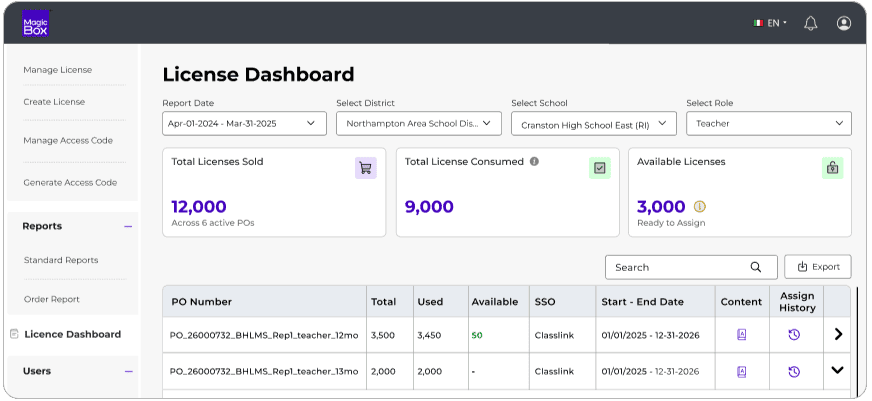
Three summary metric cards sit at the top of the dashboard, giving you an instant read on your license inventory:
- Total Licenses Sold / Created – the total licenses created against your active Purchase Orders.
- Total Licenses Consumed – licenses that have been assigned to users. Click the info icon next to this card for a role-by-role breakdown.
- Available Licenses – unassigned licenses still ready to be distributed.
Filter Your Way to the Data You Need
The dashboard is built around flexible filtering, so you can zoom into exactly the view you need:
- Date Filter – Select a single year, up to two years for aggregated data, or a custom date range. Your selection drives every metric on the dashboard and persists for your entire session.
- District Filter – Choose a specific district, or select “None” to view school-level data directly.
- School Filter – Automatically defaults to “All Schools” once a district is selected, giving you a rollup view you can narrow down as needed.
- Role Filter – Filter by All Roles, District Admin, School Admin, Teacher, or Student. Note that this filter only affects the detailed PO table below – your top-level Sold, Consumed, and Available counts always reflect the full District/School picture.
Note: This feature is currently supported only for the School workflow and is not available for Individual Teacher or Student workflows.
Purchase Order-Level Breakdown
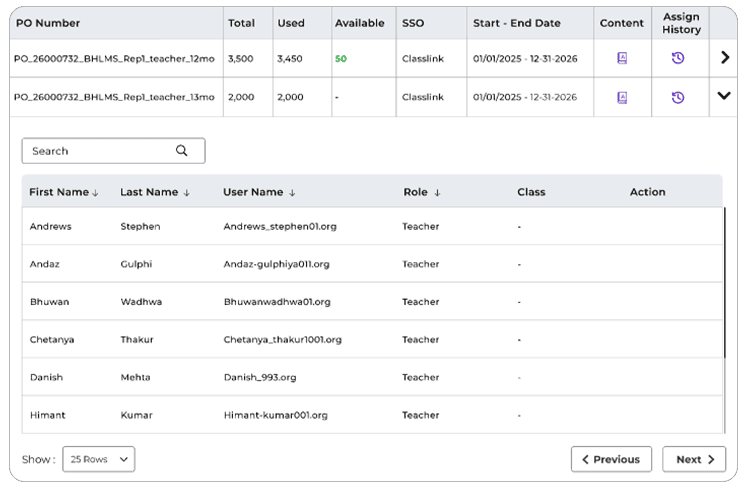
Every active Purchase Order for your selected Date/District/School combination is listed in a detailed table, showing licenses created, available, and consumed per PO, along with the associated third-party integration, start and end dates, and quick access to:
- Content Assign – view the content and SKUs tied to that PO
- Assign History – view the classes, groups, and students linked to that PO
- Expand – drill into user-level detail for that PO (see below)
Catching Overconsumption Before It Becomes a Problem
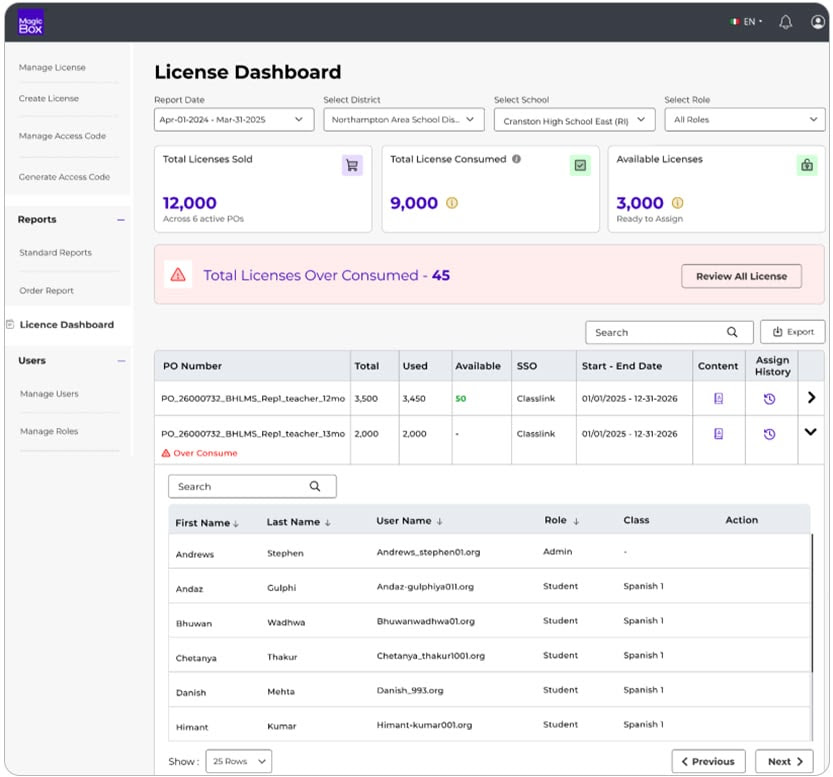
An Overconsumption Banner automatically appears, showing the total number of overconsumed licenses along with a review workflow.
From the review popup, you can resolve issues quickly by:
- Releasing a single license at a time, or
- Selecting multiple licenses for a bulk release
Drill Down to Individual Users
Expanding any PO row surfaces user-level detail – first name, last name, username, role, and class associations. If a student is affected by overconsumption, both their old and new class names are shown side by side (with creation dates on hover), along with a Release button to correct the assignment on the spot.
Value for Publishers
- Prevent License Usage Discrepancies – Identify overconsumption early and release incorrectly consumed licenses before they impact availability.
- Eliminate manual tracking – Get a single view of license usage without relying on spreadsheets or multiple reports.
- Identify Usage Issues Faster – Drill down from district-level license usage to user and class associations to quickly pinpoint discrepancies.
- Stay in control – Monitor license consumption across districts, schools, roles, and Purchase Orders in real time.
Please note that features mentioned above are available as part of our premium offerings and are subject to a paywall. Please reach out to your Customer Success Manager to learn more or to enable these features, if aligned with your objectives.
